

Automation Testing Tutorial: Your First Test in Minutes
Written byDominik Szahidewicz


Updated: June 12, 2026View as Markdown
🤖 Summarize this article with AI:
💬 ChatGPT 🔍 Perplexity 💥 Claude 🐦 Grok 🔮 Google AI Mode
Automation testing is the process of using software tools to execute tests automatically on your application — comparing actual results to expected outcomes. Instead of manually clicking through your app every time you deploy, automation lets you run tests in seconds, saving time and catching bugs early.
BugBug is built to get you from zero to a working test in minutes — no code, no setup headaches. Teams like Letpension had their first test running in under 10 minutes, and others automated in two days what used to take weeks to script by hand. In this tutorial, you'll walk through that exact first test using BugBug, a no-code end-to-end testing tool designed for teams that want results without the overhead.
Check also:
When developers change code, things can break. Manual testing means checking everything yourself — clicking every button, logging in and out, and making sure the app still works. It's reliable but painfully slow.
Automation testing changes that. Instead of repeating the same actions manually, you teach the tool what to click once, and it runs those steps automatically — faster and more consistently. You click "Run Test," and it handles the rest.
Unlike code-based tools like Selenium or Cypress, there's nothing to install or script — you record, and BugBug writes the test for you. When Quadient's team made that switch, they cut test-building time by nearly 50%.
Let's create a simple login test using React Admin Posters Galore — a demo app for learning automation testing.
Before you start:
- Set up a free BugBug account
- Install the BugBug Chrome extension
Click "Create Project" and name it Posters Galore. Enter the starting URL: https://marmelab.com/react-admin-demo/
Click "Create Test" and name it Login. This test checks whether login functionality works — a type of functional test.
Click "Start Recording." BugBug opens your app in an incognito window to ensure a clean state with no cache or cookies.
Enter demo in both the login and password fields, then click "Sign in." Move slowly — BugBug records every click and keystroke.
Assertions are checkpoints that verify expected outcomes. After login, assert that the text "Welcome to the react admin e-commerce demo" is visible. If it appears, the test passes. If not, it fails.
Click "Finish Recording," then run the test to watch BugBug repeat your actions automatically. If all steps turn green — you did it. 🎉
That's the whole point: from a blank project to a passing automated test in a few minutes, without writing a line of code.
Sometimes a test fails because something was missing — for example, a hover step wasn't recorded. Here's how to fix it:
BugBug appends the missing step, keeping your test clean and maintainable.
💡 Pro tip: This saves tons of time compared to starting over from scratch.
You can't (and shouldn't) test everything. Focus on business-critical paths — the features that, if broken, directly impact your users.
| Feature | If It Breaks | Critical? |
|---|---|---|
| Login | Users can't access the app | ✅ Yes |
| Registration | New users can't sign up | ✅ Yes |
| Homepage | Visitors can't navigate | ✅ Yes |
| Password reset | Only affects a few users | ⚠️ No |
| Obscure settings | Nobody notices | ❌ No |
Start by automating 5–15 essential tests, then expand once you're confident.
This is where it compounds. Upfluence, a mid-sized SaaS platform, started exactly here and grew to roughly 120 automated test cases — cutting production regressions to zero. Pilot.io dropped customer-reported issues from around 30 a month to under 10. The first test takes minutes; the payoff scales from there.
Shorter tests are easier to maintain. If a test takes 10 minutes to run and fails at the end, you waste time re-running it. Instead, split long tests into smaller, independent ones.
❌ Too long: Visit homepage → Click "Features" → Assert features → Click "Contact" → Assert contact info
✅ Better:
Each test should be atomic — independent and self-contained.
Some scenarios are difficult or unstable to automate, especially when you're starting out:
Code-based tools can sometimes handle these edge cases with custom scripting — but that's exactly the overhead most teams want to avoid early on. The faster path is to automate your static, predictable flows first, prove value quickly, and tackle the hard cases once your suite is established. BugBug's custom variables and JavaScript steps are there when you need them.
As your test collection grows, group tests into suites — sets you can run together. By default, BugBug provides an "All tests" suite; later you can create specialized ones like "Smoke Tests," "Regression Tests," or "Staging Environment."
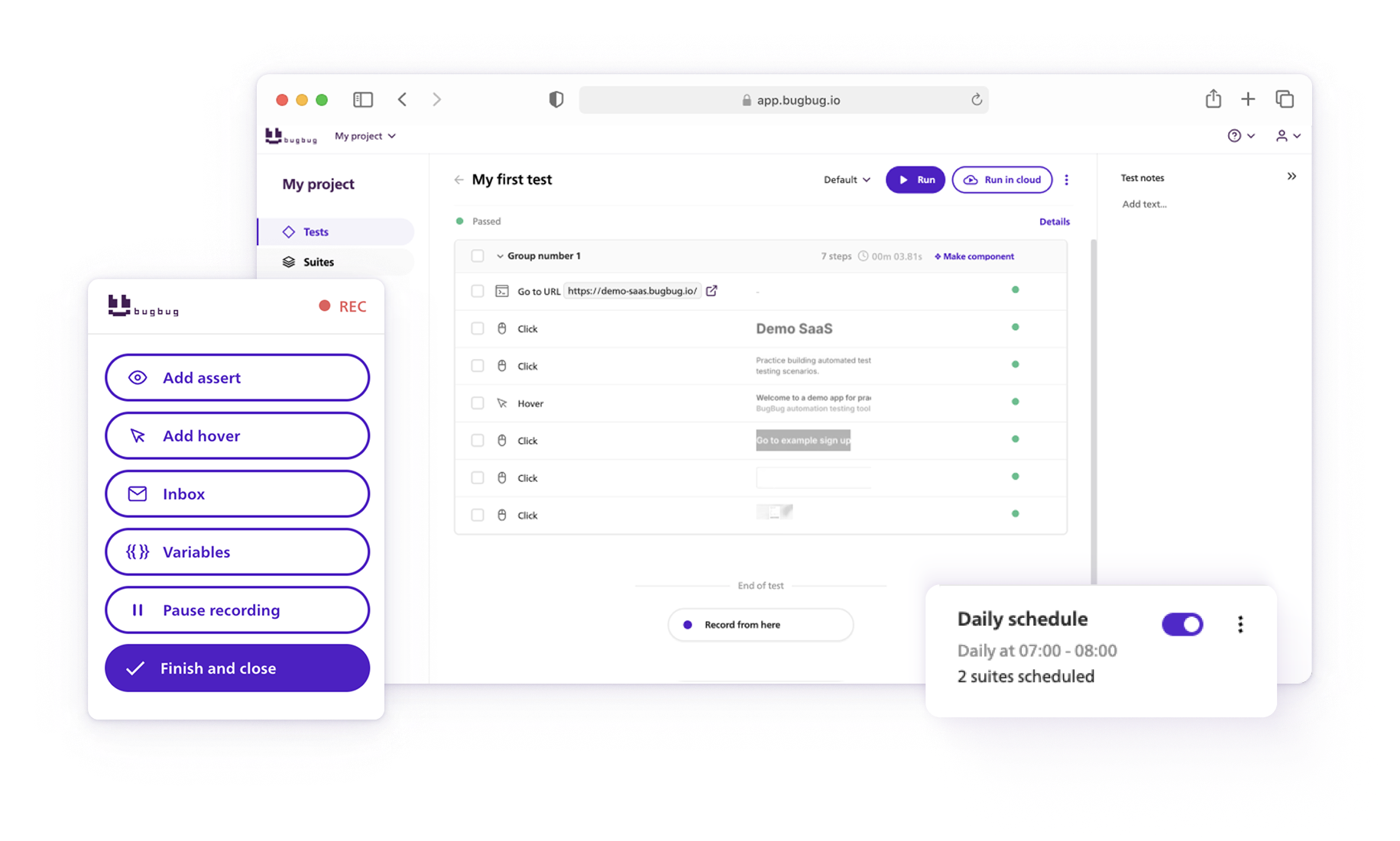
You don't need to block your computer to run tests. BugBug runs them in the cloud, remotely, on its servers. Just go to Suites → All tests → Run in cloud. You can schedule tests to run automatically at night or every hour, and get notified the moment something breaks.
You built your first test in minutes — that's the whole idea. BugBug stays out of your way so your team can focus on shipping, while your coverage grows in the background:
The teams above started with a single test and scaled to comprehensive coverage — saving QA hours, cutting regressions, and reducing customer-reported issues along the way.
Ready to see it for yourself? Start free and have your first test running in minutes — or book a demo to see how SaaS teams run full regression suites at scale.
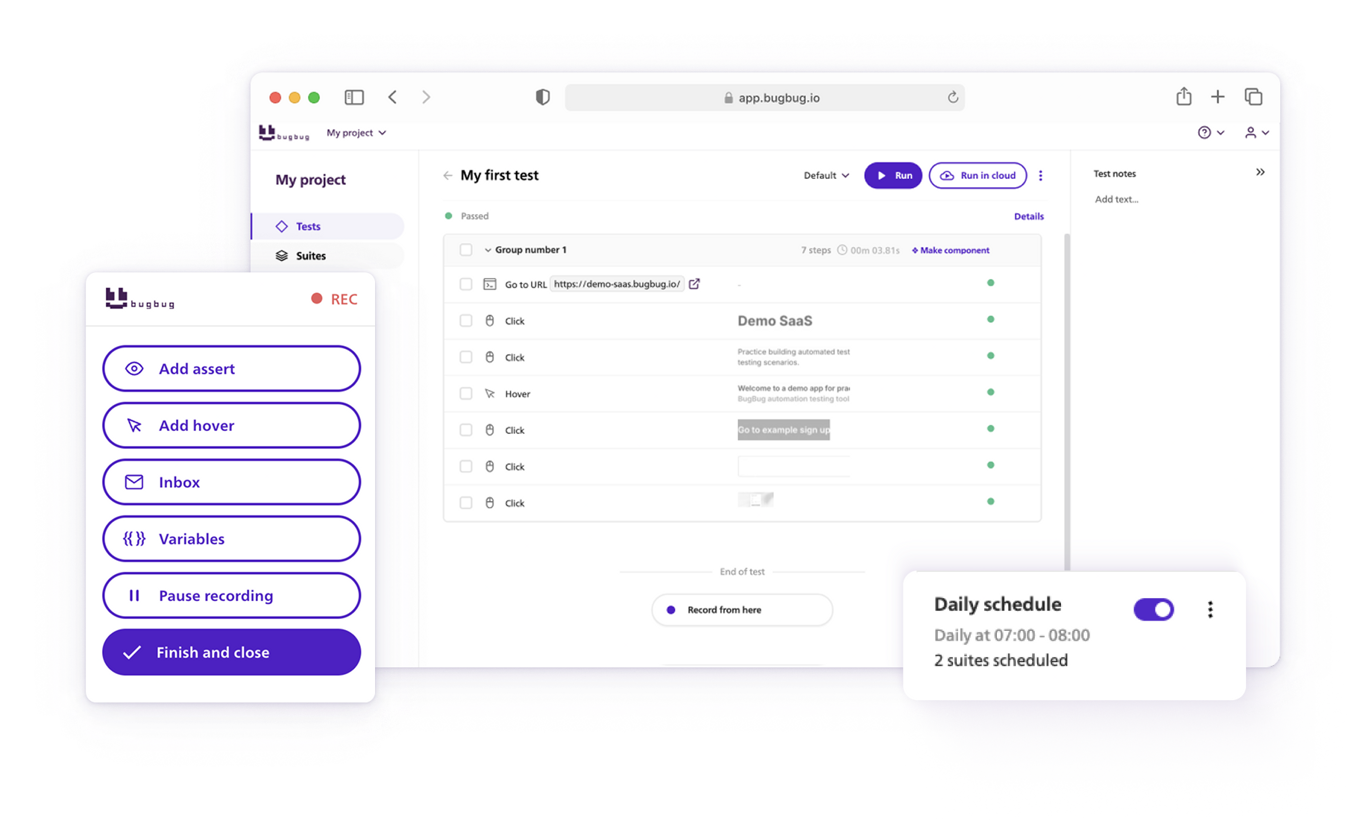
Your next release. Properly tested.
Join 1,200+ QA teams that automated their
regression coverage with BugBug.

Dominik Szahidewicz is a Software Quality Evangelist specialising in quality assurance, test automation, and modern software testing practices. He creates practical, research-driven content that helps QA professionals, developers, and product teams improve test coverage, automate repetitive testing, and release more reliable web applications.
Drawing on his experience in technical writing, data analysis, and application consulting, Dominik translates complex testing concepts into clear, actionable guidance. His areas of interest include end-to-end testing, low-code test automation, regression testing, and the use of AI in software quality assurance.
Get more testing tips and product related content. Zero spam.
Learn how to build an effective QA strategy that aligns with your business goals. Discover best practices in quality assurance, test automation, and more!
This article delves into the journey of becoming an Automated Test Engineer, offering insights into the essential skills, knowledge, and steps required to embark on this career path and increase your current salary.
This article delves into the significance of crafting comprehensive test cases for login pages, highlighting various scenarios.
Discover the causes and impact of flaky tests, and learn effective strategies to identify and fix them for reliable software performance.
Discover the best practices for handling Stale Element Reference Exception in Selenium. Learn how to avoid it in your test automation code.
Discover practical strategies to engage developers and product managers in software testing. Learn how collaboration improves product quality.
Learn how to speed up end-to-end (E2E) testing with smart test design, CI/CD optimizations, and lightweight tools like BugBug.
Discover cloud testing, a powerful approach for evaluating application performance and reliability using cloud computing resources.
Discover the holistic testing that empowers agile teams to integrate exploratory testing into their software development, ensuring QA at every stage.


