

Visual Regression Testing: Catch Bugs Tests Miss
Written byMariusz Wójcik


Updated: August 1, 2026View as Markdown
Your tests are green. Your UI is broken. Both are true at the same time, and that's the exact gap visual regression testing exists to close: it compares current UI screenshots against baseline images to catch layout shifts, spacing changes, color, font, and alignment issues that functional tests often miss.
A junior dev refactors a stylesheet on Thursday. The PR is small, every test passes — the button still exists, still submits, the API still returns a 200. So it ships. On Saturday, a customer can't check out: a CSS minification plugin strips all styles entirely. The button is there; it's clickable, but nothing on the page has any styling. Your functional tests can't see that. Visual regression testing can.
This guide explains how visual regression testing works, the main image comparison approaches, where false positives and noisy diffs come from, how to reduce that noise in practice, and which tools are actually worth considering — including BugBug — depending on your workflow, budget, and team setup.
Also check:
Visual regression testing compares how your interface looks now against how it looked before, and flags the differences.
The word "regression" means going backward. Functional regression testing makes sure new code doesn't break existing behavior. Visual regression testing helps preserve the user interface and existing functionality after code changes by catching shifts in layout, spacing, color, fonts, and alignment that users notice even when assertions still pass.
Here's the cleanest way to hold the distinction:
Both matter. A page can pass every functional test and still be unusable, like the checkout button above. And a page can look pixel-perfect while the form silently fails to submit. You need both layers. Visual regression testing helps catch visual bugs before they frustrate users, which supports user experience and brand reputation. They're usually different tools. More on that later. Since 94% of first impressions rely on website design, visual consistency is not a minor detail.
👉 Read our comprehensive guide on regression testing
1. Capture baseline screenshots. The first time you run the test, the tool screenshots the page or component in its current, known-good state. That approved baseline image becomes the reference images used for later comparisons.
2. Capture a new screenshot. On the next run, after code has changed, the tool repeats capturing screenshots of the same page under the same conditions as part of automated testing.
3. Compare the two. In automated visual regression testing, the tool uses those screenshots to capture and compare screenshots across runs, providing instant visual feedback on pixel-level differences while finding visual differences and visual changes.
4. Review and decide. If the difference crosses a threshold, the test fails and a human reviews it, which helps prevent human error when deciding whether a change is intentional or a real regression. Either it's a real regression (fix the code), or it's an intentional change (update the baseline to match), and visual regression testing validates that code changes did not break existing functionality at the visual layer.
During the first test run, BugBug automatically captures a screenshot to establish a baseline reference tied specifically to your testing environment, including the browser, OS, and screen size. On subsequent runs, it captures a new screenshot and compares it against this exact baseline to calculate the percentage of visual differences, factoring in color sensitivity and anti-aliasing. The visual regression step passes if the observed changes stay within your predefined tolerance threshold, but fails if the differences exceed the allowed maximum. You can review the highlighted visual diffs and choose to reject the unintended change, increase the tolerance, or accept the new UI as your updated reference.
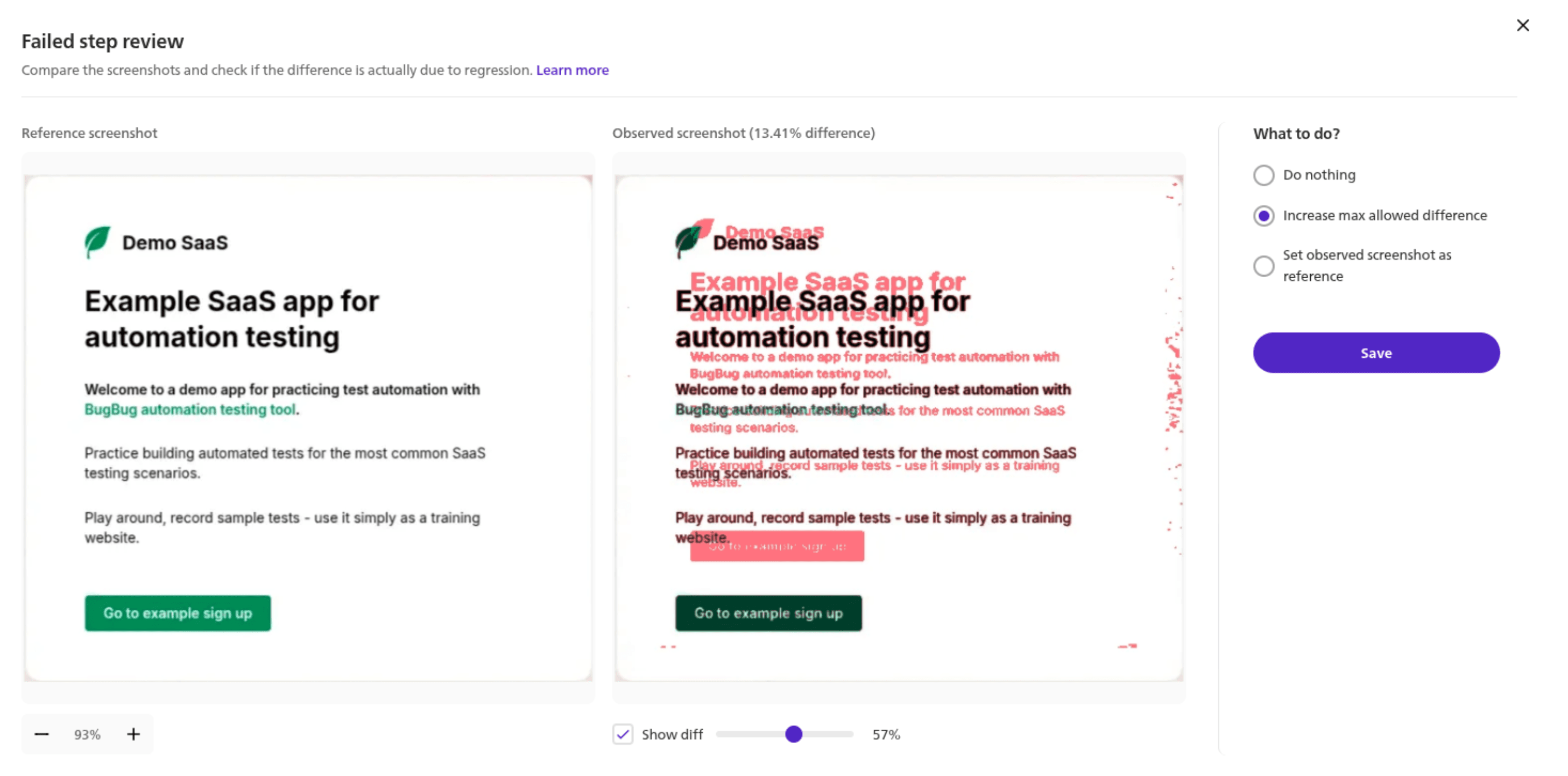
Say your baseline is a set of baseline screenshots or baseline snapshots for the login screen: email field, password field, a "Sign in" button below them. A developer adds a row of social-login buttons. But the new row pushes the layout down and the "Sign in" button now overlaps the password field — unusable.
A functional test sees three inputs and a button, all present, all clickable in isolation. Green. Manual testing can miss that kind of layout overlap at a glance, especially when the flow still technically works. A visual regression test captures the new screenshot, diffs it against the baseline, and visual regression testing detects layout overlap and other visual defects in key visual elements before release. Red. You catch it before it ships.
That review step in stage four is where visual testing lives or dies. Get the comparison and the baseline-update workflow right, with solid baseline management, and it's a safety net. Get them wrong and it's a pile of false alarms your team learns to ignore.
Not all visual regression testing techniques work the same way, and in software development they’re typically used as part of broader ui testing to protect interface quality without adding unnecessary noise or cost.
It compares the two images pixel by pixel and flags any difference. This kind of visual diff is effective for spotting unintended visual changes, but it can also overreact to irrelevant differences like a one-pixel anti-aliasing shift or a font rendering slightly differently on another machine. Best for: stable, predictable screens where you control the rendering environment.
It compares the underlying HTML structure rather than the rendered image. It's less sensitive to rendering noise, but it misses genuinely visual problems — a CSS color change or a broken font won't show up if the DOM is unchanged. Best for: catching structural shifts, not true visual fidelity.
It uses artificial intelligence and computer vision to compare images the way a human would, surfacing only differences a person would actually notice. Its main benefit is reducing false positives by ignoring minor rendering noise a human would not notice. It's the most forgiving method and the most expensive. Best for: large, dynamic UIs where false-positive fatigue is the main problem.
It checks the size and position of elements rather than their exact pixels. Useful for catching shifted or misaligned components without flagging color or content changes.
Most tools sit on one side of a line: pixel-based (transparent, cheaper, noisier) or AI-based (quieter, pricier, more of a black box). Which side you want depends on your UI and your budget — a decision we'll come back to after the tool list.
If you read the documentation for most enterprise cloud testing platforms, they make visual automation sound like magic: plug it in, and your layout issues disappear.
In reality, it is a technical minefield.
When software teams try to implement simple pixel-by-pixel comparisons without understanding rendering mechanics, they fall victim to false-positive fatigue. The tests scream that a page is broken, but to the human eye, nothing has changed. Within weeks, the team mutes the alerts, disables the visual checkpoints, and completely abandons the initiative.
Engineering case studies across tech communities highlight the three hidden bottlenecks that cause this failure mode: a weak testing strategy, tools that do not fit existing testing frameworks, and platforms that fall short on environment consistency, review workflow, screenshot accuracy, or baseline management.
The most common cause of flaky visual tests—where tests fail without any actual code or design changes—is text rendering.
Browsers rely heavily on the host operating system and the local graphics card (GPU) to execute anti-aliasing (smoothing the jagged edges of vector fonts). The exact pixel distribution of a smoothed font shifts based on whether Chrome is running headlessly inside a Linux Docker container on your CI server or locally on a developer’s macOS machine, which is why reliable comparisons depend on running in the same environment and controlling the test environment.
As system architect Brent Haskins writes, teams can waste months chasing "pixel-perfect" parity across environments only to realize the diff engine is flagging a $0.5\text{-pixel}$ boundary shift that a human user literally cannot see, so baseline screenshots need a consistent environment to remain trustworthy. A strict pixel-to-pixel matrix match will mark that entire text block as a massive failure.
Another classic pipeline killer is asynchronous font loading, which leads to FOUT (Flash of Unstyled Text) or FOIT (Flash of Invisible Text).
If your testing tool snaps a screenshot at $1200\text{ms}$ into a page load, and your custom Google Font takes $1250\text{ms}$ to fully resolve over a busy CI network, the browser will temporarily render a fallback system font like Arial. To avoid false failures, tools need stable screenshots captured only after the page has fully settled.
When the target font finally resolves 50ms later, the layout subtly shifts down by a few pixels. Because everything on the page is now lower than it should be in the baseline, the diffing engine marks the entire screen below that line as a giant visual regression error.
Modern web applications are highly dynamic. Timestamps update by the minute, user avatars load asynchronously, and analytics dashboards render complex SVG charts with entry animations.
If your staging environment has slightly different mock data than your production or local machine, a full-page pixel match will break instantly.
How QA Teams Survive this Maintenance Hell
To stop these false alarms from destroying testing velocity, QA teams apply two core practices as part of their testing strategy:
- Element-Level Targeting: Instead of snapshotting a massive, unpredictable viewport filled with dynamic sidebars, they isolate stable UI components (like an isolated checkout modal or a button) using specific HTML selectors.
- Threshold Tuning: They accept that digital rendering is non-deterministic. Instead of demanding a strict 0% discrepancy, they implement an adjustable mathematical threshold (e.g., allowing up to a 0.5% or 1% variance) to absorb anti-aliasing artifacts while still capturing a completely broken layout.
- Teams often group these checks into a test suite or visual test suite so baseline review and maintenance stay organized.
None of this means visual regression isn't worth doing. It means the tools that handle environment consistency and review workflow well are worth far more than the ones that pretend these problems don't exist.
There's no single best tool — there's the right tool for your stack, your budget, and how your team works. The best options also support visual regression tests running in CI/CD pipelines, and teams often run visual tests in parallel to avoid slowing down deployments as checks happen automatically while code moves forward. Here's an honest shortlist of best visual regression platform.
| Tool | Approach | Best for |
|---|---|---|
| Percy | AI-assisted | Cross-browser coverage at scale |
| Applitools | Visual AI | Enterprise, dynamic UIs |
| BugBug | Pixel + per-env baselines | Web teams wanting functional + visual in one tool |
| BackstopJS | Pixel | Devs who want free + scriptable |
| Lost Pixel | Pixel | Open-source flexibility |
| Playwright / Vitest | Pixel | Teams already in those frameworks |
| Chromatic | Pixel + UI review | Storybook design systems |
Check our detailed guide on the best Visual Regression Testing Tools for in-depth comparison.
For most web SaaS teams, pixel comparison with well-managed thresholds and environments isn't the budget compromise — it's the more correct tool. Visual AI solves a problem you probably don't have while introducing one you definitely don't want.
The core issue is determinism. A test exists to give the same answer for the same input, every time. Pixel comparison does that. AI-based diffing is non-deterministic by design: the same input can produce different judgments on different runs — tolerable for a creative assistant, disqualifying for a regression test. It gets worse in production, where these tools depend on model providers. Outages force a fallback to another model that judges differently; under load, providers quietly downgrade to smaller models. Your visual suite is now coupled to a third party's capacity planning, and "depends on the provider's traffic today" is not repeatable or dependable.
None of this makes Visual AI useless. It earns its cost on large, genuinely dynamic UIs where pixel-diff false positives eat real review hours and no amount of element isolation or thresholding tames them.
Percy and Applitools live here, and for enterprise teams with that exact pain, they're good at it. But that's not most teams. If you're a small or mid-sized SaaS with a reasonably stable UI, a deterministic pixel engine with sane thresholds and per-environment baselines will serve you better, cost a fraction, and never lock you into a vendor's black box — BugBug, BackstopJS, Lost Pixel, and the Playwright/Vitest native tools all sit here. Start here, and reach for AI only when false positives, not the marketing, become the actual bottleneck.
Start by running automated visual regression tests in CI/CD with deterministic pixel comparison and per-environment baselines — that’s enough for most web SaaS teams and a fraction of the cost of Visual AI. Add AI diffing (Percy, Applitools) only when false positives scale past what thresholds and element isolation can handle. Choose Chromatic for Storybook design systems. And if you'd rather run functional and visual checks in one Chromium tool than maintain two, BugBug bundles both — visual regression on the Pro plan at $189/year. See if it fits.
Ready to catch the bugs your functional tests can't see? If you're on Chromium and want functional and visual coverage in a single tool, BugBug's visual regression is the fastest way to find out if it fits.
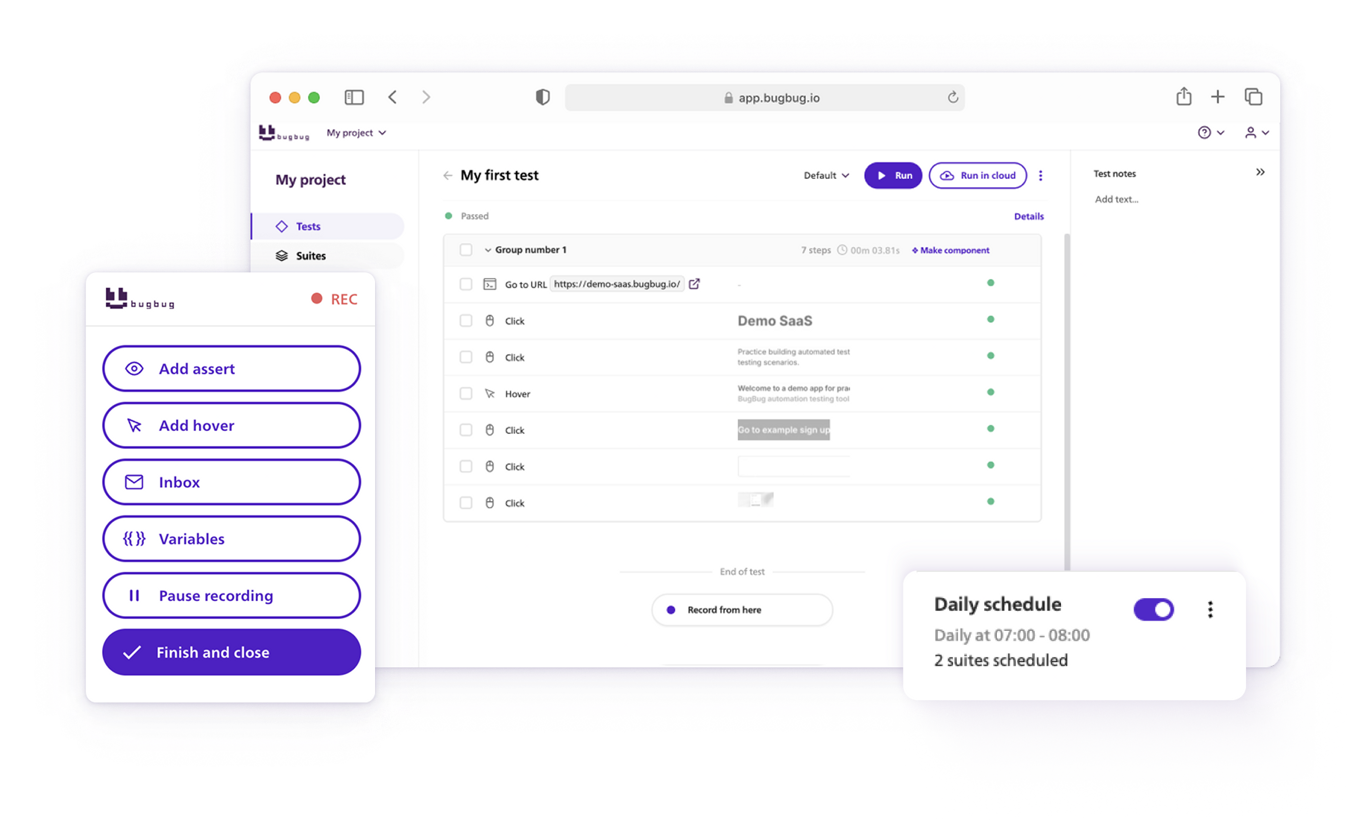
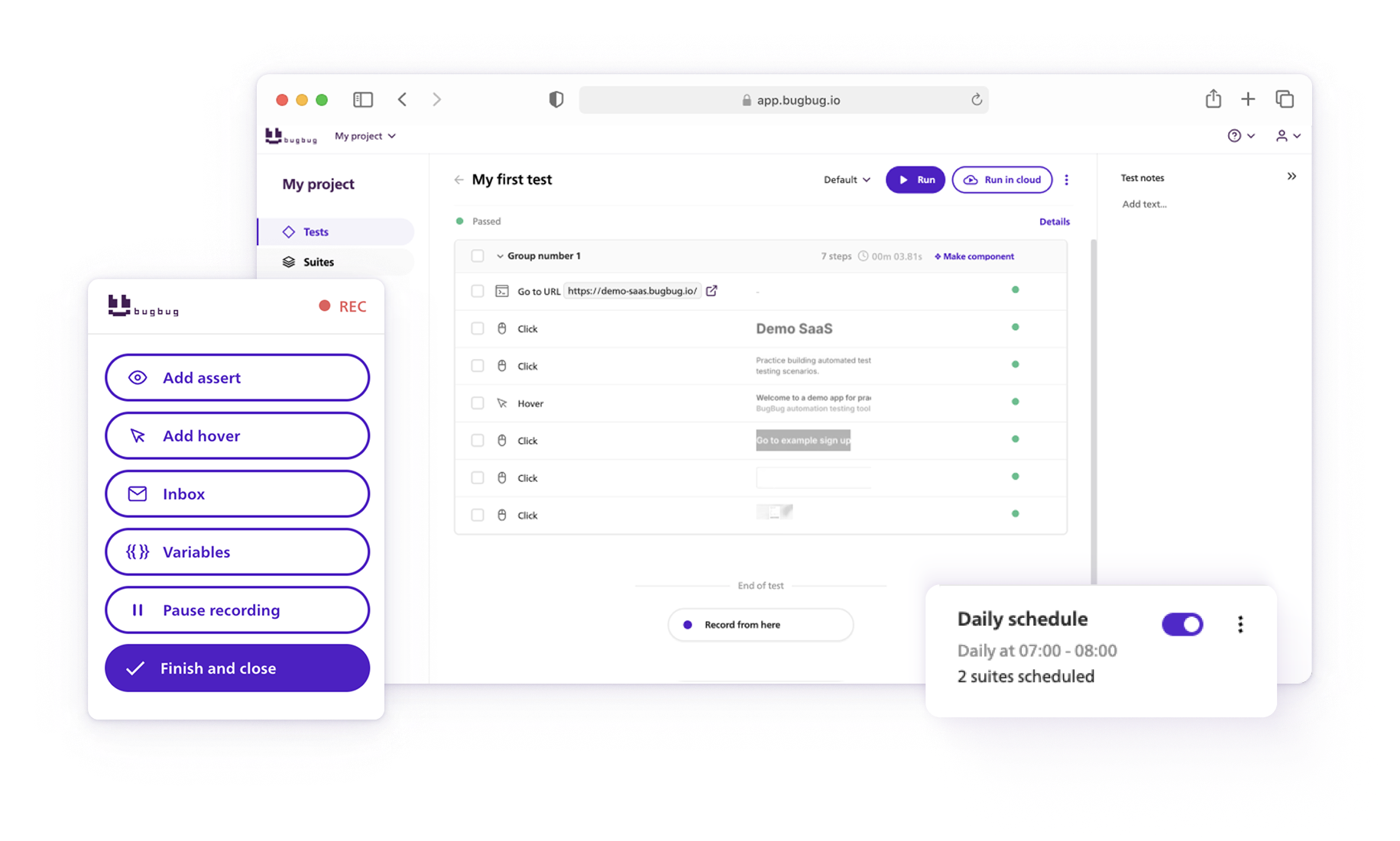
Your next release. Properly tested.
Join 1,200+ QA teams that automated their
regression coverage with BugBug.

Senior software engineer at BugBug, where he's spent 6 years helping shape the product. He's a T-shaped developer skilled in frontend with React and TypeScript, browser extensions, backend work, and building AI agents and tooling. His strengths also include UX instincts, a product-minded approach, and process automation.
Get more testing tips and product related content. Zero spam.
Discover the essential QA tester skills for 2026! Learn the technical and soft skills required to excel as a QA Tester.
Learn how to automate regression testing without devs or QA. Discover a risk-based strategy and practical workflows.
Build a CI/CD testing pipeline in 30 minutes with BugBug. Learn how to run reliable E2E smoke tests on every PR, block bad merges, and scale safely.
This article delves into the journey of becoming an Automated Test Engineer, offering insights into the essential skills, knowledge, and steps required to embark on this career path and increase your current salary.
Discover how to calculate ROI for test automation with easy formulas and practical examples. Learn to evaluate costs and track results effectively.
Learn how to build an effective QA strategy that aligns with your business goals. Discover best practices in quality assurance, test automation, and more!
Learn how to create a test plan for the testing process of your web application. Discover how to write a test plan with examples in the article.
Read this comprehensive guide on how to choose the right CI/CD tool. Selecting the tool that aligns with your project is essential.
Learn how to extend low-code testing with JavaScript to add advanced logic, API validation, and dynamic assertions without testing framework.


